
1Before you start
Your website is www.averyfresh.sg. It runs on Wix. You look after your products and enquiries from the Wix dashboard, the control panel behind your website. We look after the design.
You can do yourself
- Change a product's name, details or photo
- Add a new product
- Hide or remove a product
- Read and reply to enquiries
- See how many people visit your website
We do for you
- Page design, layout and the phone version
- Text and pictures on the pages
- New pages, menus and buttons
- Google search settings
- Your domain and team access
The pictures in this guide come from your own Wix dashboard. Red numbers point to the button each step talks about. Tap any picture to make it bigger.
2Log in to your dashboard
- Open the invitation email from Wix and click Accept. Always log in with this same email address.
- Go to www.wix.com and click Log In.
- Open Avery Fresh. You are now on your dashboard.
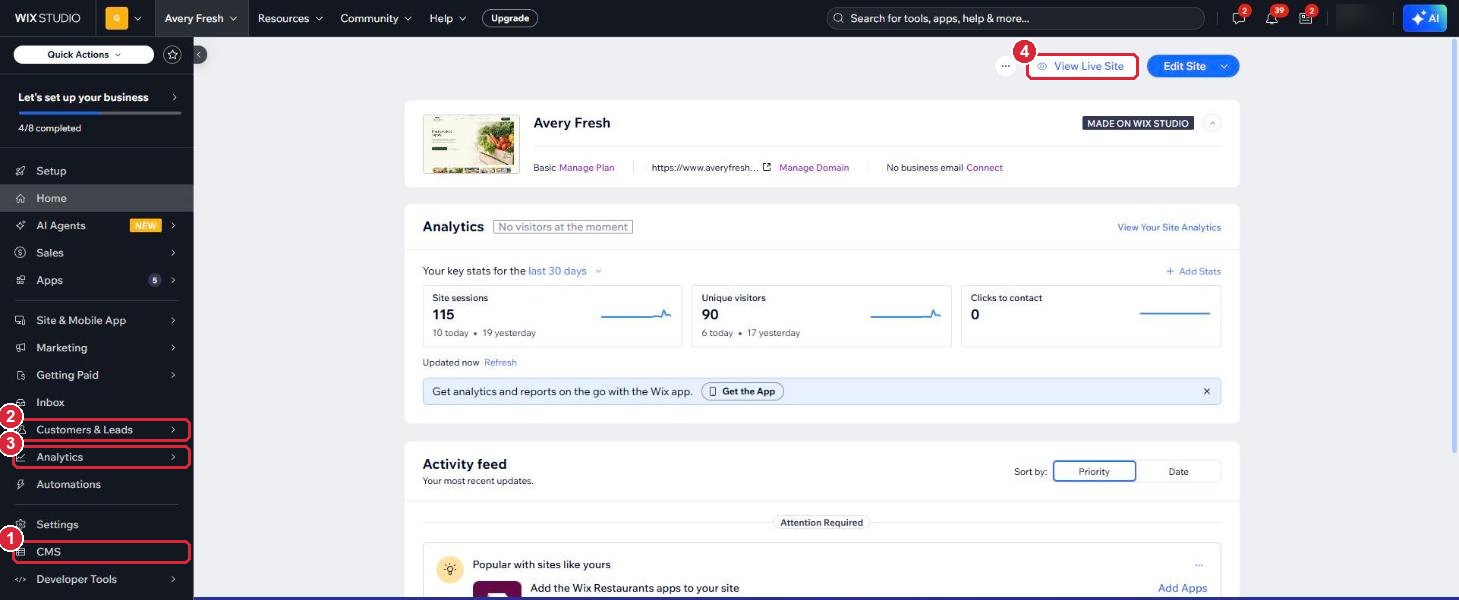
- 1CMS: your products.
- 2Customers & Leads: your enquiries and contacts.
- 3Analytics: how many people visit your website.
- 4View Live Site: see your website the way your customers see it.
3Find your products
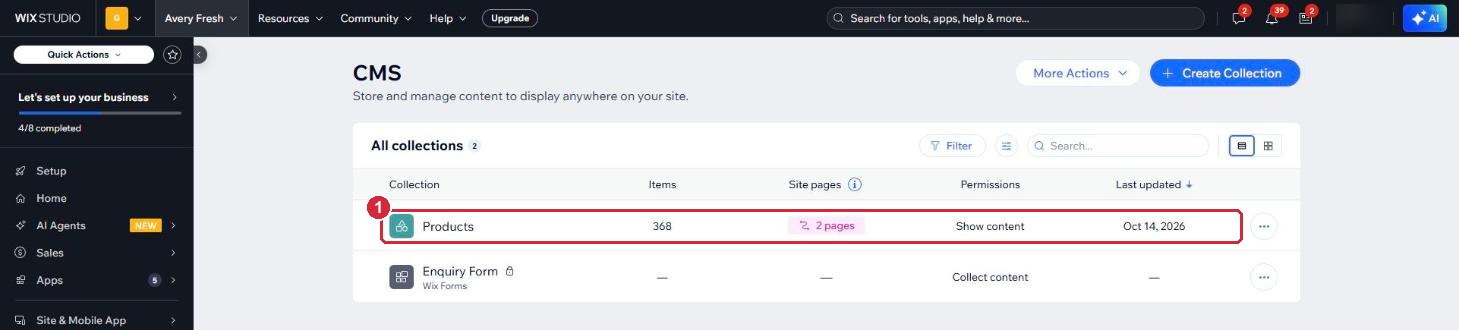
All 368 products on your website live in one list called Products: 199 on the Fresh Produce page and 169 on the General Supplies page.
- On the left, click CMS.
- Click Products.
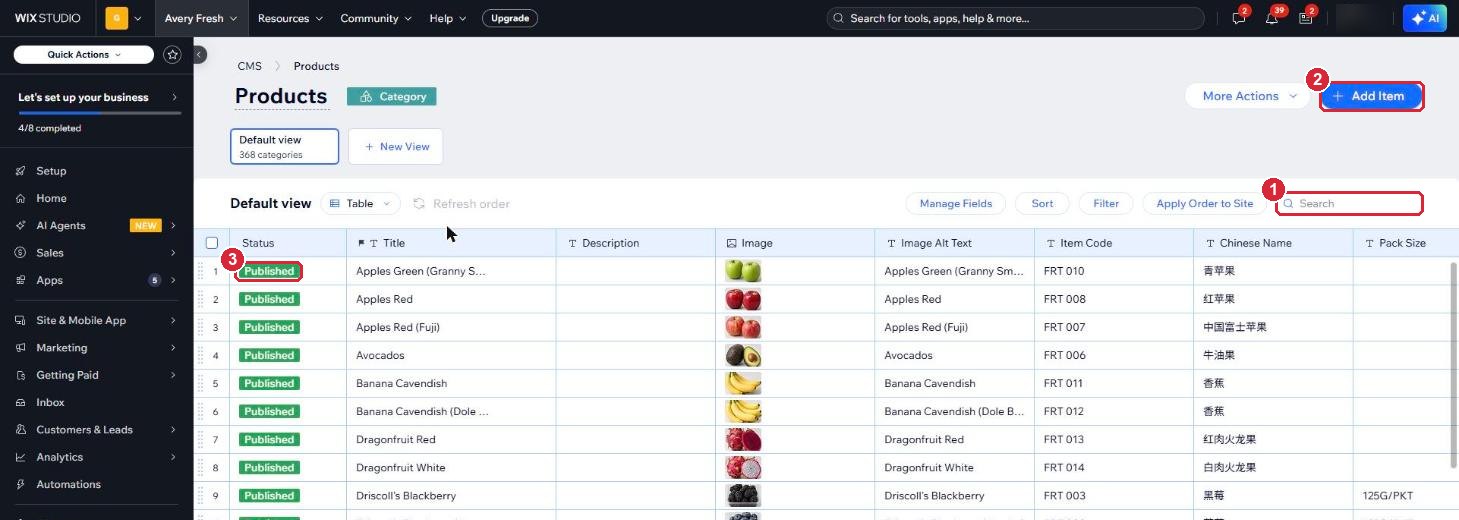
- 1Search: type a product name or item code to find it quickly.
- 2Add Item: add a new product (see section 6).
- 3Status: "Published" means the product shows on your website.
4Edit a product
- Point at the product's name and click Open.
- Change what you need, for example the name, pack size or origin.
- Click Save. Your website updates within a few minutes.
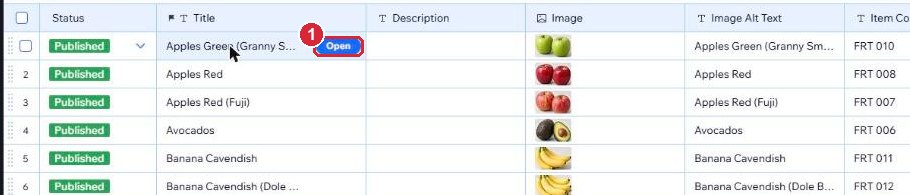
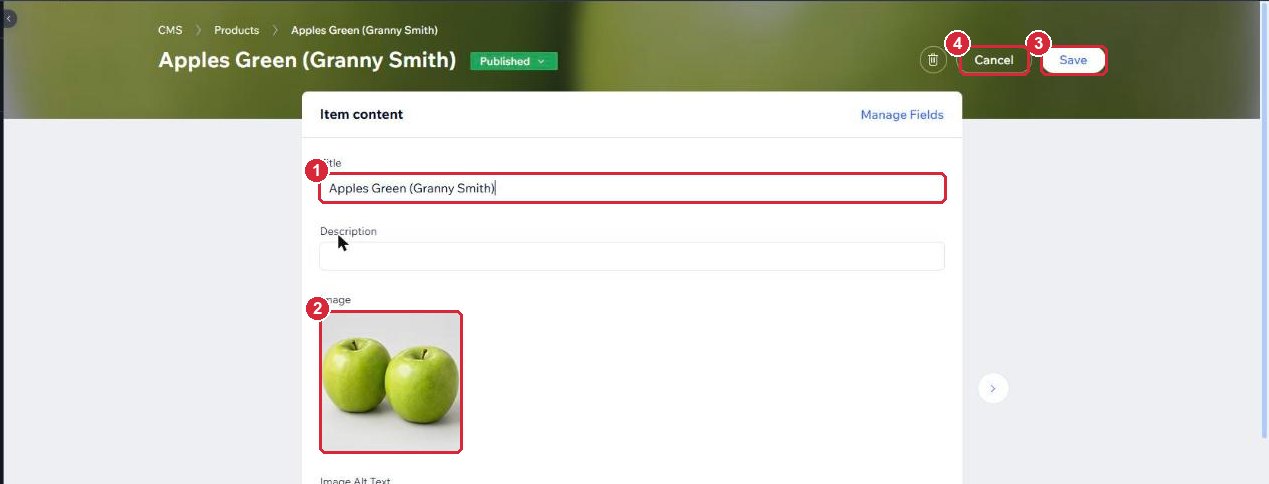
- 1Title: the product name shown on your website.
- 2Image: the product photo (see section 5).
- 3Save: keeps your changes.
- 4Cancel: leaves without changing anything.
5Change a product photo
- Open the product.
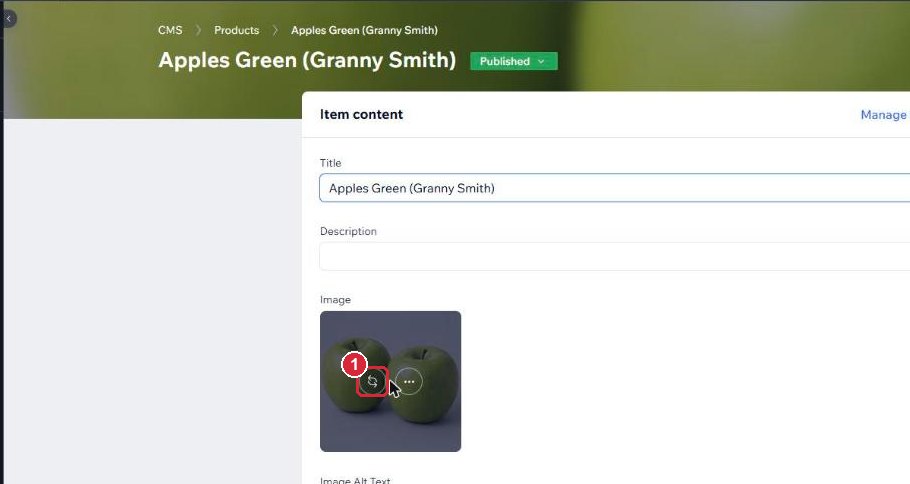
- Point at the photo and click the replace icon (two curved arrows).
- Upload your new photo, then click Save.
6Add a new product
- In Products, click Add Item.
- Fill in the fields below, then click Save.
- Click View Live Site and check the product shows on the right page and under the right filter.
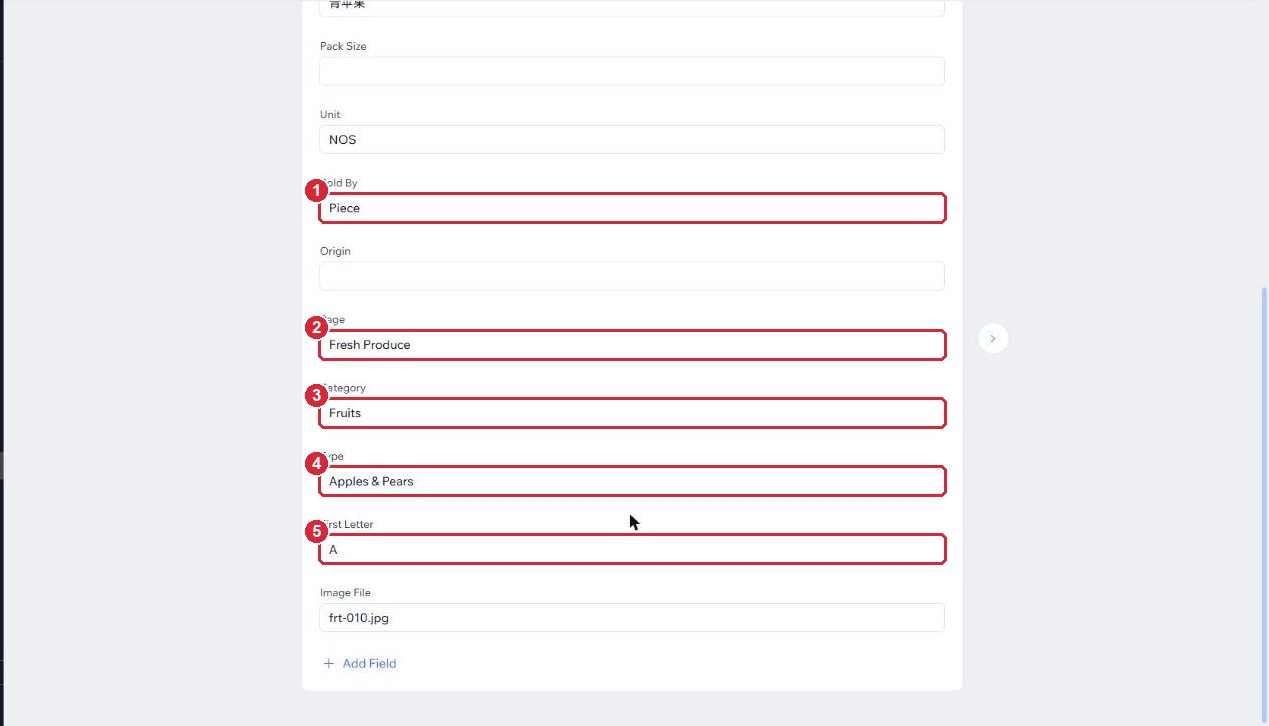
- 1Sold By
- 2Page
- 3Category
- 4Type
- 5First Letter
| Field | What to type |
|---|---|
| Title | The product name in English, for example Apples Green (Granny Smith). |
| Description | Leave empty. It does not show on your website. |
| Image | A square product photo (see section 5). |
| Image Alt Text | The product name again. Screen readers read this out for people who cannot see the photo. |
| Item Code | Your code, in the same style as your product list, for example FRT 010. |
| Chinese Name | The Chinese name, if there is one. Otherwise leave empty. |
| Pack Size | For example 125G/PKT. Leave empty if there is none. |
| Unit | As on your product list, for example KG, NOS, PKT or CTN. |
| Sold By | One choice from the Sold By list below, spelt exactly the same. |
| Origin | Where it comes from, for example South Africa, New Zealand. Leave empty if it changes. |
| Page | Exactly Fresh Produce or General Supplies. |
| Category | One category that belongs to that page (lists below). |
| Type | One type that belongs to that category (lists below). |
| First Letter | The first letter of the Title, as a capital letter, for example A. |
| Image File | Leave empty. We only used it to load your first photos. |
Fresh Produce: categories and types
Fruits
- Apples & Pears
- Bananas
- Berries
- Citrus
- Grapes & Kiwi
- Melons
- Tropical
Vegetables
- Beans, Peas & Sprouts
- Cabbage & Brassicas
- Cooking Leaves & Aromatics
- Gourds & Squash
- Leafy Asian Greens
- Lettuce & Salad
- Mushrooms & Fungi
- Onions, Garlic & Ginger
- Other Vegetables
- Roots & Tubers
- Tomatoes, Peppers & Chillies
Herbs
- Fresh Herbs
General Supplies: categories and types
Chilled & Frozen
- Dairy
- Desserts
- Fish & Seafood
- Frozen Vegetables
- Meat & Poultry
- Noodles & Wraps
- Tofu & Soy
Dry Goods
- Canned & Jarred
- Dairy, Eggs & Breakfast
- Oils & Fats
- Rice, Flour & Noodles
- Salt, Sugar & Seasoning
- Sauces & Pastes
- Spices & Dried Foods
Kitchen Essentials
- Bags & Gloves
- Cleaning
- Fuel & Disposables
- Wraps & Foil
Sold By: the choices
Need a new category or type that is not in these lists? Send us a request first, so we can add it to the website filters.
7Hide or remove a product
To hide a product for now (recommended)
- Open the product.
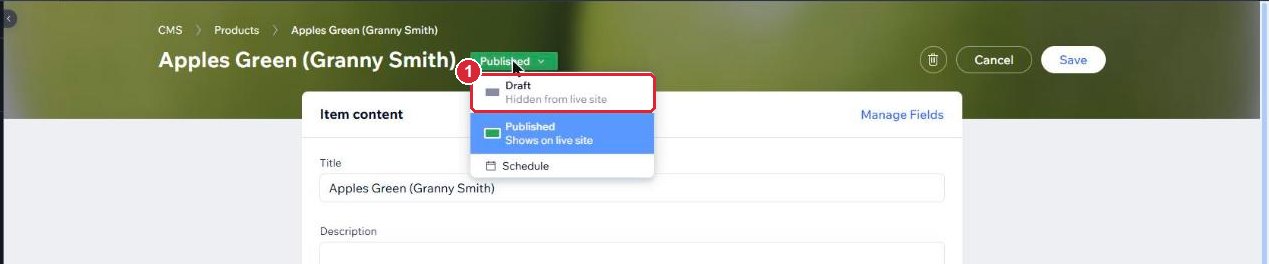
- At the top, click Published and choose Draft.
- Click Save. The product disappears from your website but stays in your list.
To remove a product for good
Open the product, click the bin icon at the top and confirm. This cannot be undone, so use Draft if you might sell the product again.
8Read your enquiries
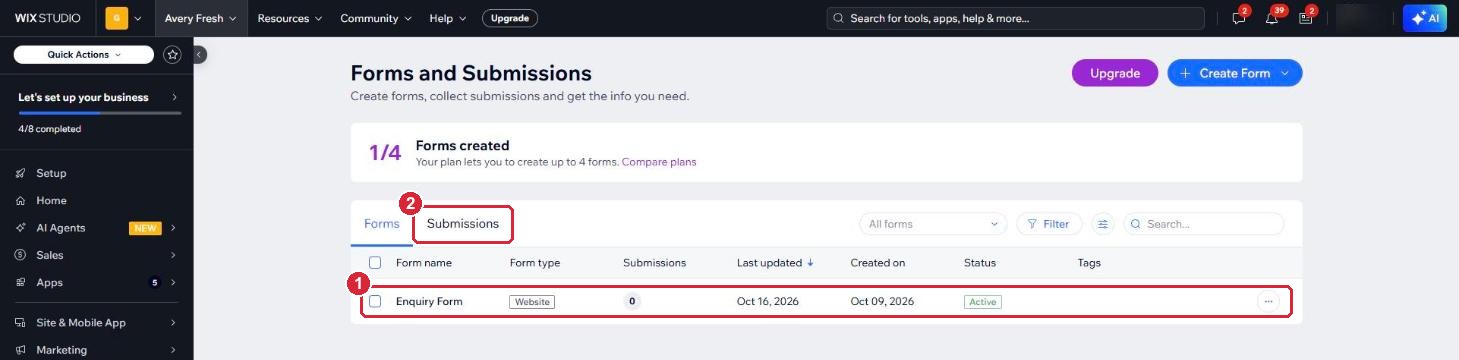
Every time someone sends the enquiry form on your Contact Us page, it is saved in your dashboard.
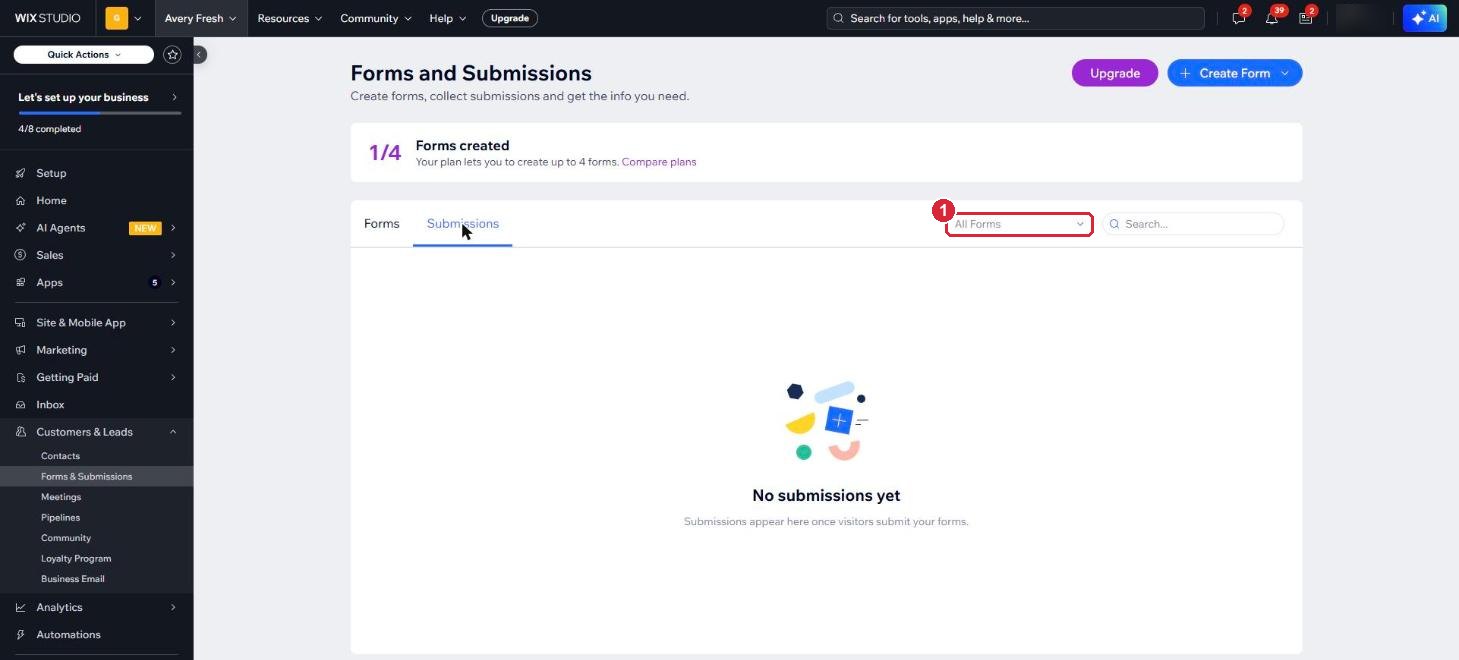
- On the left, click Customers & Leads, then Forms & Submissions.
- Click the Submissions tab.
- Click an enquiry to see the details: name, business, phone, email, what they need, and any purchasing list they attached (you can download it).
9Your contacts
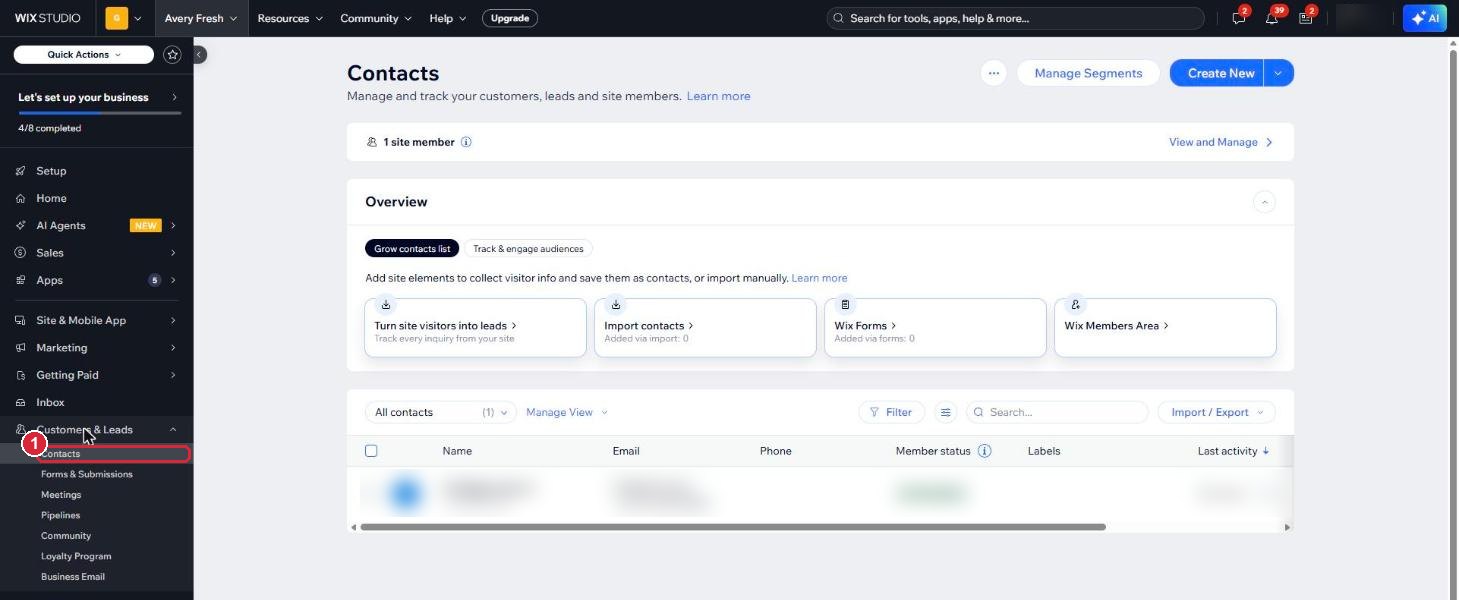
People who send you an enquiry are saved in your contact list, so you can find them again later.
- On the left, click Customers & Leads, then Contacts.
- Use the search box to find a person or business.
10Your website visits
- On the left, click Analytics.
- Choose the period you want to see, for example the last 30 days.
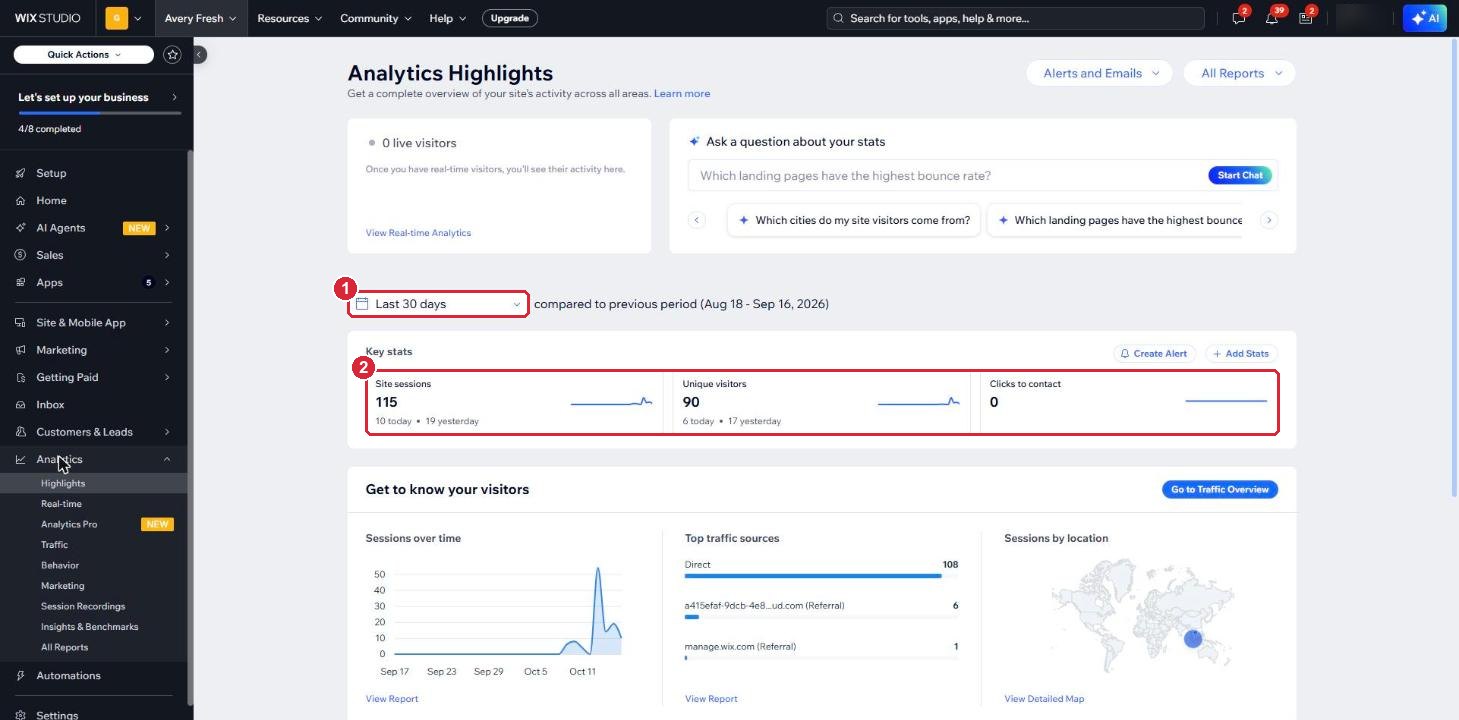
- 1Date range: the period you are looking at.
- 2Key stats: site sessions is the number of visits, unique visitors is the number of different people, and clicks to contact counts clicks on your contact details.
We have also connected your website to Google Analytics and Google Search Console, and we keep an eye on them for you.
11What we look after for you
Send us a request for anything outside your products and enquiries, for example:
- Changing text or pictures on a page
- Design, layout or how a page looks on phones
- New pages, menu items or buttons
- A new product category or type for the filters
- Google search settings
- Your domain, or giving a colleague access to the dashboard
Tell us the page and what you want changed. A screenshot helps.
Send a website support request12Good habits
- After a change, click View Live Site and check it looks right.
- Copy Page, Category, Type and Sold By words exactly from section 6.
- Do not delete or rename fields under Manage Fields, and do not rename the Products list. The website reads them by name.
- Use square product photos.
- Use Draft to hide a product. Delete only when you are sure.
- Keep your Wix login to yourself. Ask us to give a colleague their own access.